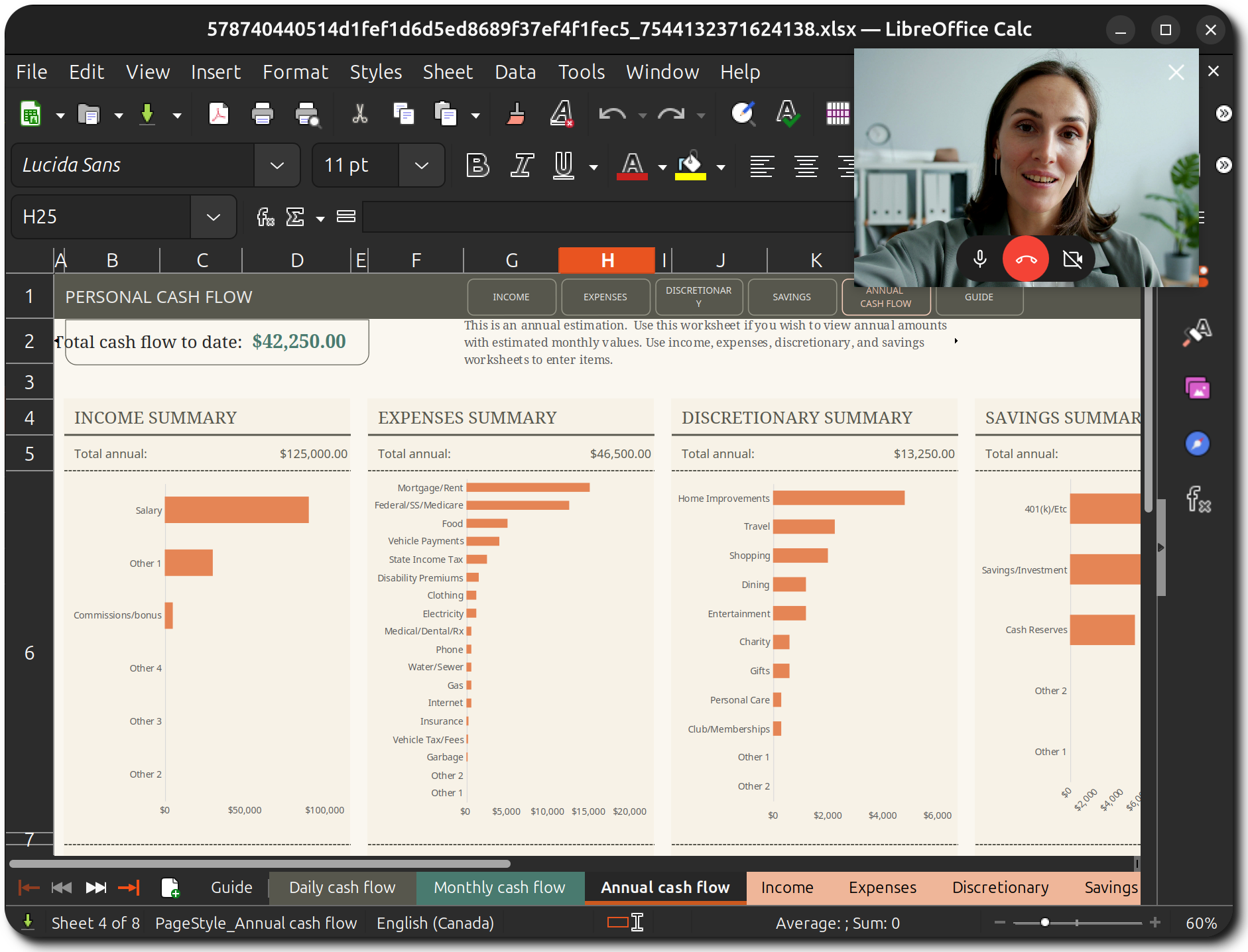
Have you ever been mid-call with one of your friends on Jami and wanted to do something else while still retaining the image of their delightful face? Or maybe you're screen sharing a spreadsheet during the company-wide meeting, and want to see your boss' reaction when you mention you're up fifty thousand dollars. With picture-in-picutre (PiP), either of these situations can now become a reality!
❓How do I Use PiP?
Using PiP requires you to be in an active call, so get yourself in one. Hit up one of your friends, or ping your colleagues at work to start a conference.
Once you've entered the call, there are two ways to activate the PiP window:
- Minimize the Jami window.
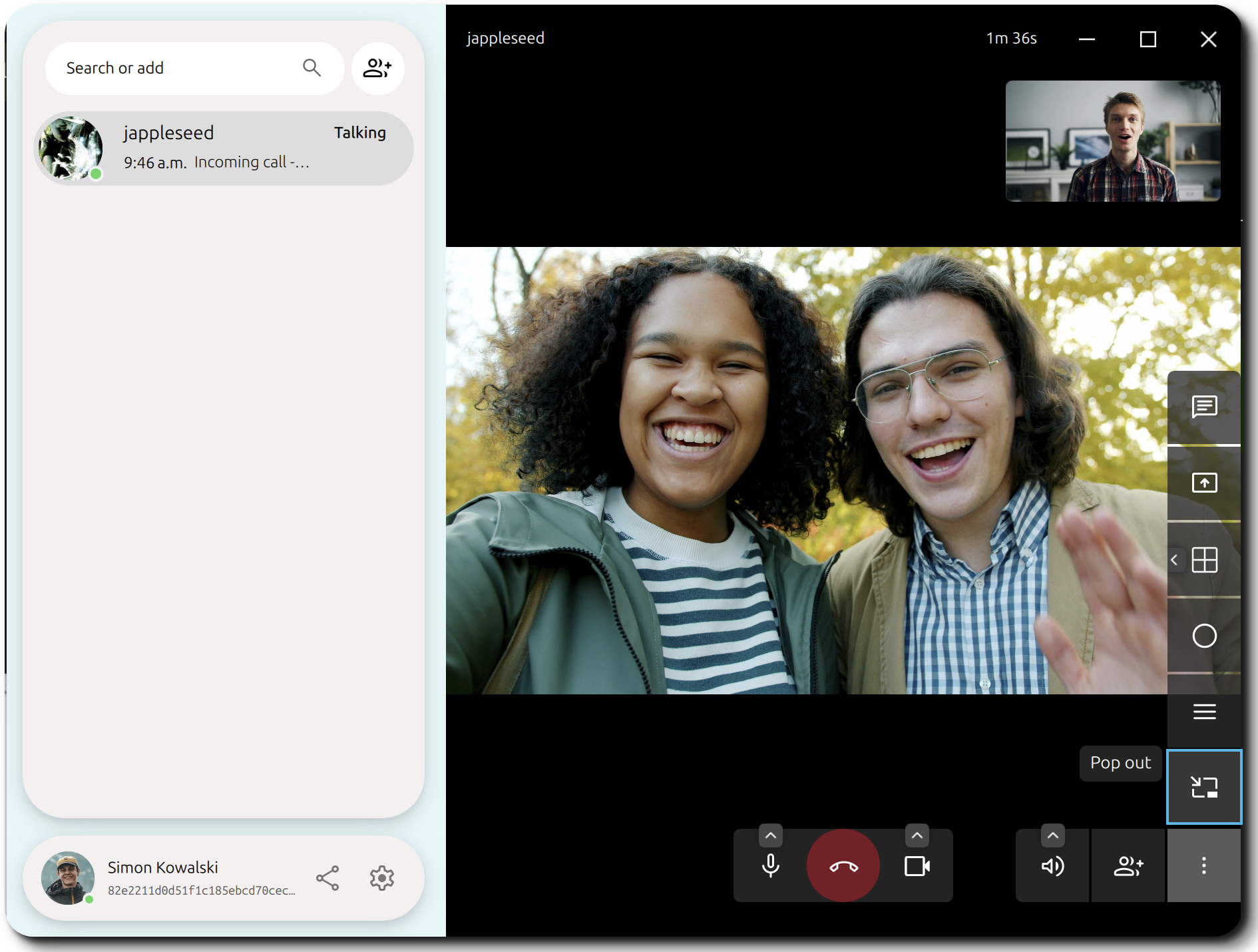
- Manually activate the PiP window (see highlighted button in the screenshot below)
Result
Once you activate PiP using either of the two methods specified above, you'll see a small window popup with your peer's video. Say hi 👋!
👥 PiP in Conferences
There are two additional features the come with PiP when you use it in a conference.
💡 A call in Jami is considered a conference if it contains more than two members!
🗣️ Active Speaker
If you've already activated PiP in a conference, you may have noticed that the participant you're shown changes sporadically. For a better user experience we've decided to show you the participant who spoke most recently. Don't worry, you won't have to stare at Bob (that teammate you've been avoiding at the office) for the entire duration of the call 😉.
✋Raising Hand
Sometimes you just need to know why HR won't let you bring your famous poutine to the company BBQ. You're a polite person, so you wait your turn to speak by doing what? Raising your hand of course!

To raise your hand in a conference while using PiP, simply press the hand icon as seen above to let it be known that you have a question/comment. The button will surround itself in blue to left you know your hand-raise is active!
❌ Closing PiP
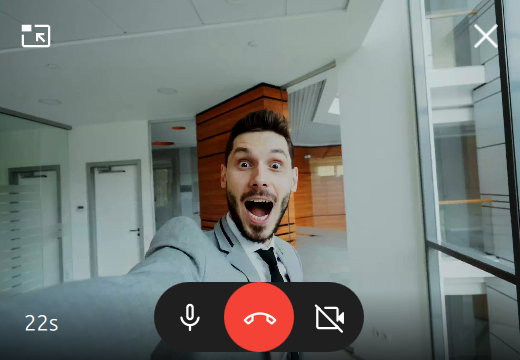
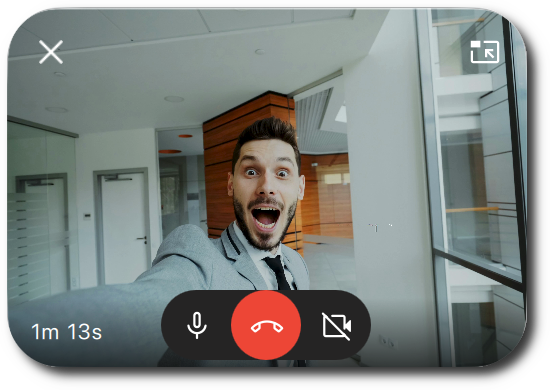
From the PiP Window
There are two ways to close the PiP window from the window itself with both performing different actions. Note that neither of these methods will end the call!
↖️ Popping-in
Press the pop-in button in the top-left corner (top-right corner on macOS). This will automatically open up Jami for you and navigate to the active call.
❌ Closing the Window
Press the close window button in the top-right corner (top-left corner on macOS). This will simply close the PiP window without re-opening Jami.
From a Conversation
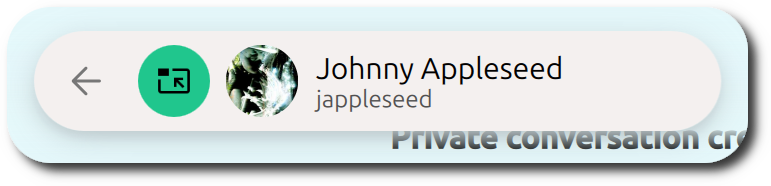
To pop-in the PiP window with Jami open, simply press the large, green Return to Call button next to the contact/group photo.
📱 What About My Portable Devices?!
PiP is already available for Android and iOS/iPadOS devices, but you knew that already, didn't you 👀?
Ready to Try Picture-in-Picture?
Have an Issue with PIP?
Our donation campaign
Building Jami is not only about writing code. It also means funding engineering time, testing, support, packaging, and the ability to keep the project independent.
If Jami is useful to you, whether every day or as a reliable alternative when you need it, your donation directly helps maintain this level of quality and accelerate development, without compromising the project’s founding principles.
Article by: Ilyas Erdogan (Jami Team)
Feature Image: The Gallery of Cornelis van der Geest by Willem van Haecht
Background Images for PiP Windows by Vitaly Gariev on Unsplash


